


To submit a procurement intake request in Microsoft Teams, open your company’s intake app in Teams, describe what you need in plain language and answer the few follow-up questions it asks. The app checks your request against policy, drafts the purchase requisition and routes it for approval, and you track it to a purchase order in the same chat.
This guide shows each step from the requester’s side, what happens after you submit, how approvers act in Teams, and how procurement teams set it up. The walkthrough uses Merlin Intake, the conversational intake app from Zycus that runs inside Microsoft Teams.
Key takeaways
- You can raise, approve and track a purchase request without leaving Teams. No forms, no separate procurement portal.
- A good Teams intake app asks only for what is missing, checks policy before a PO exists and routes the request to the right path automatically.
- The Teams Approvals app handles simple sign-offs. Purchase requests also need policy checks, catalog and contract matching, and a write-back into your procurement system.
- Procurement teams install the app from Microsoft Marketplace, connect it to their procurement suite or ERP and pilot one spend category first.
Why submit procurement requests in Teams?
Because that is where requests already start. Employees ask for laptops, software and services in chats and emails long before a requisition exists. Microsoft reported more than 320 million monthly active Teams users in October 2023, which makes Teams the natural front door for most enterprises.
Procurement also has less capacity to chase those requests by hand. The Hackett Group projects procurement workloads will rise 8% in 2026 while head count and operating budgets decline (The Hackett Group, 2026 Procurement Key Issues Study). Capturing requests in Teams, complete and policy-checked, removes the follow-up emails that fill that gap. For the cost of the alternative, see what it costs to keep taking email purchase requests.
What is a procurement intake request?
A procurement intake request is the first, structured record of something an employee needs to buy. It captures what is needed, why, how much it will cost and by when, so procurement can decide the right way to buy it. Intake is the step before a purchase requisition or purchase order exists. For the full definition, see What is intake management in procurement?
Three terms get mixed up often:
| Term | What it is | Who creates it | When |
| Intake request | The employee’s need, captured and structured | The requester | First, before anything is bought |
| Purchase requisition (PR) | The internal approval document for a specific purchase | Usually drafted from the intake request | After the need is validated |
| Purchase order (PO) | The commercial document sent to the supplier | Procurement or the system, after approval | After the PR is approved |
In Teams, all three can live in one conversation: you describe the need, the app drafts the PR, and you see the PO number when it is issued.
What do you need before you submit a request in Teams?
A good intake app asks for anything you forget. You will still move faster with these ready:
- What you need. Item or service, with model, specs or scope.
- Quantity. Units, seats, hours or deliverables.
- Budget or cost center. An estimate is fine; include the currency.
- Needed-by date. When it must arrive or start.
- Delivery location. Office, site or region.
- Supplier preference. Optional. The app will check whether that supplier is approved.
- Business reason. One line on why the purchase is needed.
- Attachments. A quote, statement of work or specification, if you have one.
If the purchase is software, a new supplier or a service with data access, expect extra review from IT security or legal. The app routes those reviews for you.
How do you submit a procurement request in Microsoft Teams, step by step?
These steps show how to submit a purchase request in Microsoft Teams with Merlin Intake. The flow takes a few minutes for a typical request.
Step 1: Open Merlin Intake in Teams. Select Apps in the Teams sidebar, search for Merlin Intake and open it. Pin it to the sidebar so it is one click away next time. If you can’t find it, your Teams admin hasn’t made it available to you yet.
Step 2: Describe what you need in plain language. Type the request the way you would message a colleague. For example: “I need 50 laptops for new hires starting in March.” You don’t need to know a category code, a supplier name or which form to use.
Step 3: Answer the follow-up questions. Merlin Intake reads your message, captures what it already knows and asks only for what is missing, such as specs, quantity, budget, delivery date and location. Skip any question that doesn’t apply.
Step 4: Attach supporting documents. Upload a quote, statement of work or specification in the chat if you have one. The details stay attached to the request through approval.
Step 5: Review matches from the catalog and past purchases. Merlin Intake checks what your company already buys and shows the closest matches, with price, supplier and the previous requisition reference side by side. If an existing contract or catalog item fits, choose it. If the request is large enough that new quotes could win a better price, it tells you.

Step 6: Choose an approved supplier. Pick from suppliers that are compliant and active in your company’s records. If the supplier you asked for isn’t approved, Merlin Intake flags it and recommends approved alternatives, or starts onboarding if a new supplier is genuinely needed.
Step 7: Review the drafted requisition and submit. Merlin Intake drafts the purchase requisition with every field filled from your conversation. Check it, adjust anything that is wrong and submit it for approval. That is how you raise a purchase requisition in Teams without opening a form.

You can raise the same request from Slack or email if that is where you work. The steps and the policy checks are the same.
What happens after you submit a request in Teams?
Three things happen without anyone forwarding an email.
- Policy is checked before a PO exists. The request is compared against your buying policy, preferred suppliers, existing contracts and budget thresholds. Off-contract requests are steered to a managed channel instead of being bought on the side.
- The request is routed to the right path. Routing follows your spend thresholds, category rules and approval matrix. Anything outside policy goes to a named owner rather than a shared inbox.
- The right work starts in the right place. A purchase requisition, a sourcing event or a contract starts in the right module of your procurement suite, with the details from your conversation attached.
Which path a request takes depends on what it is:
| Request type | Typical path | Who gets involved |
| Catalog item or repeat purchase | Purchase requisition, then PO | Budget owner |
| Non-catalog item or large quantity | Quotes or a sourcing event through Merlin Autonomous Sourcing | Procurement, budget owner |
| Low-value or tail-spend purchase | Negotiation with suppliers through Merlin Autonomous Negotiation Agents | Procurement sets the guardrails |
| New supplier | Supplier onboarding and risk checks before purchase | Procurement, risk |
| Software or a service with data access | Security, privacy and legal review, in parallel where possible | IT security, legal |
| Renewal | Renewal review against the existing contract | Contract owner |
How do you track purchase request status in Teams? Ask in the same chat, for example “What is the status of my PR?” Merlin Intake shows where the request is, who it is waiting on and the PO number once it is issued. You don’t need to log in to a procurement system to find out.
How do approvers review and approve purchase requests in Teams?
Purchase request approval in Microsoft Teams works the same way for every approver, whether they are a budget owner, finance or IT security.
- They get a notification in Teams when a request needs their decision.
- They review the full context in one place: what is being bought, the cost, the supplier, the business reason, attachments and the policy checks already run.
- They approve or reject in Teams, with a comment if needed. The requester sees the decision right away.
- Reviews can run in parallel or in sequence, depending on your policy. Legal and security can review at the same time instead of one after the other.
- Every decision is logged: who approved, when and why, which gives procurement and audit one complete trail.
Approvers can act from the Teams mobile app, so a request doesn’t wait for someone to get back to a desk. Heineken’s team describes Zycus’s AI-powered request experience as “enabling seamless on-the-go approvals”.

Worked example: requesting 50 laptops for new hires in Teams
Here is how one request moves from a Teams chat to a purchase order. The names, figures and thresholds below are illustrative, not customer data.
The request. Priya, an engineering manager, opens Merlin Intake in Teams and types: “I need 50 laptops for the new hires starting March 3.”
The follow-up questions. Merlin Intake asks only for what it can’t work out on its own:
- Which cost center should this be charged to?
- Do the new hires need the standard engineering spec or a different configuration?
- What is the delivery location?
Priya answers in three short replies. She doesn’t pick a category, look up a GL code or find a form.
The match. Merlin Intake finds the standard engineering laptop in the catalog, under an existing contract with an approved supplier. It shows Priya the unit price, the contract terms and an estimated total of about $75,000 (illustrative: 50 units at roughly $1,500 each).
The policy check and routing. Because the total is above the manager’s approval limit in this example, the request routes to:
- Priya’s budget owner, for the cost center.
- Finance, because the amount crosses the second threshold in the approval matrix.
IT doesn’t need a separate review, because the item is a pre-approved catalog spec.
The approvals. The budget owner approves from the Teams mobile app the same afternoon. Finance approves the next morning. Each decision is logged with a name, time and comment.
The outcome. A purchase requisition is created with the catalog item, contract, cost center and delivery address already filled in, then converted to a PO and sent to the supplier. Priya asks “Where is my laptop order?” in the same chat and sees the PO number and the expected delivery date.
What didn’t happen: no email to procurement asking which form to use, no second email with the missing cost center, and no hunt for the laptop supplier’s contract.
| Step | Email and forms | Merlin Intake in Teams |
| Find the right form or person | Email procurement, wait for a reply | Open Teams, start typing |
| Add missing details | Back-and-forth emails | Three follow-up questions in chat |
| Find supplier and price | Procurement looks it up | Matched to catalog and contract instantly |
| Route approvals | Manual forwarding | Automatic, by approval matrix |
| Check status | Email procurement again | Ask in the same chat |
Teams Approvals app vs Forms and Power Automate vs a procurement intake agent
There are three common ways to take purchase requests in Microsoft Teams. Each fits a different level of procurement maturity.
- The Teams Approvals app. Built into Teams, it lets anyone send a simple approval request to one or more people. It’s quick to start and needs no build. Approvals are created in your organization’s default Power Platform environment, an admin can turn the app off, and anything beyond a basic yes or no flow needs Power Automate (Microsoft Learn: Approvals app availability). It doesn’t know your catalog, contracts or buying policy.
- Microsoft Forms, Power Automate and SharePoint. A form collects the request, a flow routes it and a SharePoint list stores it. This is flexible and stays inside Microsoft 365, but someone has to build and maintain every rule, form field and connector. Policy checks and supplier matching are only as good as the logic your team writes.
- A procurement intake agent, such as Merlin Intake. The request is captured in conversation, checked against policy and contracts, routed by your approval matrix and written back to your procurement suite or ERP. It needs a setup project, but procurement keeps the rules in one place instead of in custom flows.
| Teams Approvals app | Forms + Power Automate + SharePoint | Procurement intake agent (Merlin Intake) | |
| Setup effort | Minutes | Days to weeks of build | A configured rollout |
| How requests are captured | Fixed or custom template | Form fields | Plain-language chat with follow-up questions |
| Policy and budget checks | None built in | Custom logic you write | Built in, from your buying policy |
| Catalog and contract matching | No | Custom build | Yes |
| Routing | Named approvers you pick | Rules you maintain | Spend thresholds, category rules, approval matrix |
| Creates PR or PO in ERP | No | Custom connector | Yes, in the suite or connected ERP |
| Audit trail | Approval history in the app | SharePoint list history | Full request-to-PO record |
| Best for | Ad hoc approvals, small teams | Teams with Power Platform skills and simple buying | Enterprises that want every request governed and tracked |
Which should you choose?
- If you only need a manager to say yes to an occasional purchase, the Approvals app is enough.
- If you have Power Platform skills in-house and buying rules that rarely change, Forms and Power Automate can work.
- If you need every request checked against policy, matched to contracts and turned into a PR or PO without manual rekeying, a procurement intake agent is the better fit.
How procurement teams set up intake in Microsoft Teams?
This section is for the procurement or IT owner rolling out Teams intake. Most teams follow six steps.
- Add Merlin Intake from Microsoft Marketplace. Merlin Intake is listed on Microsoft AppSource. Your Teams admin approves the app and makes it available to the users or groups who will raise requests.
- Connect it to your procurement system. Merlin Intake works with the Zycus Source-to-Pay suite or with your existing ERP, such as SAP, Oracle or NetSuite, through 1,121 APIs and an MCP server. This is what lets a request become a PR or PO without rekeying.
- Load your buying policy. Add spend thresholds, category rules, preferred suppliers and your approval matrix, so routing happens without manual triage.
- Pilot one category. Start with a high-volume, low-risk category such as IT hardware or office supplies. Measure the baseline before you switch.
- Tell employees where to go. Pin Merlin Intake in Teams and share a one-line message: “Need to buy something? Ask in Teams.”
- Retire the old intake channels. Redirect the procurement inbox and old forms to Teams so requests stop arriving in two places.

How to measure whether Teams intake is working?
Track five numbers before and after rollout:
| Metric | What it tells you |
| Request-to-PO cycle time | How long a need takes to become an order |
| First-time-right rate | Share of requests that need no back-and-forth |
| Requests through the managed channel | Share of spend that goes through intake rather than around it |
| On-contract spend | Share of purchases matched to an existing contract or preferred supplier |
| Requester satisfaction | Whether employees will keep using the channel |
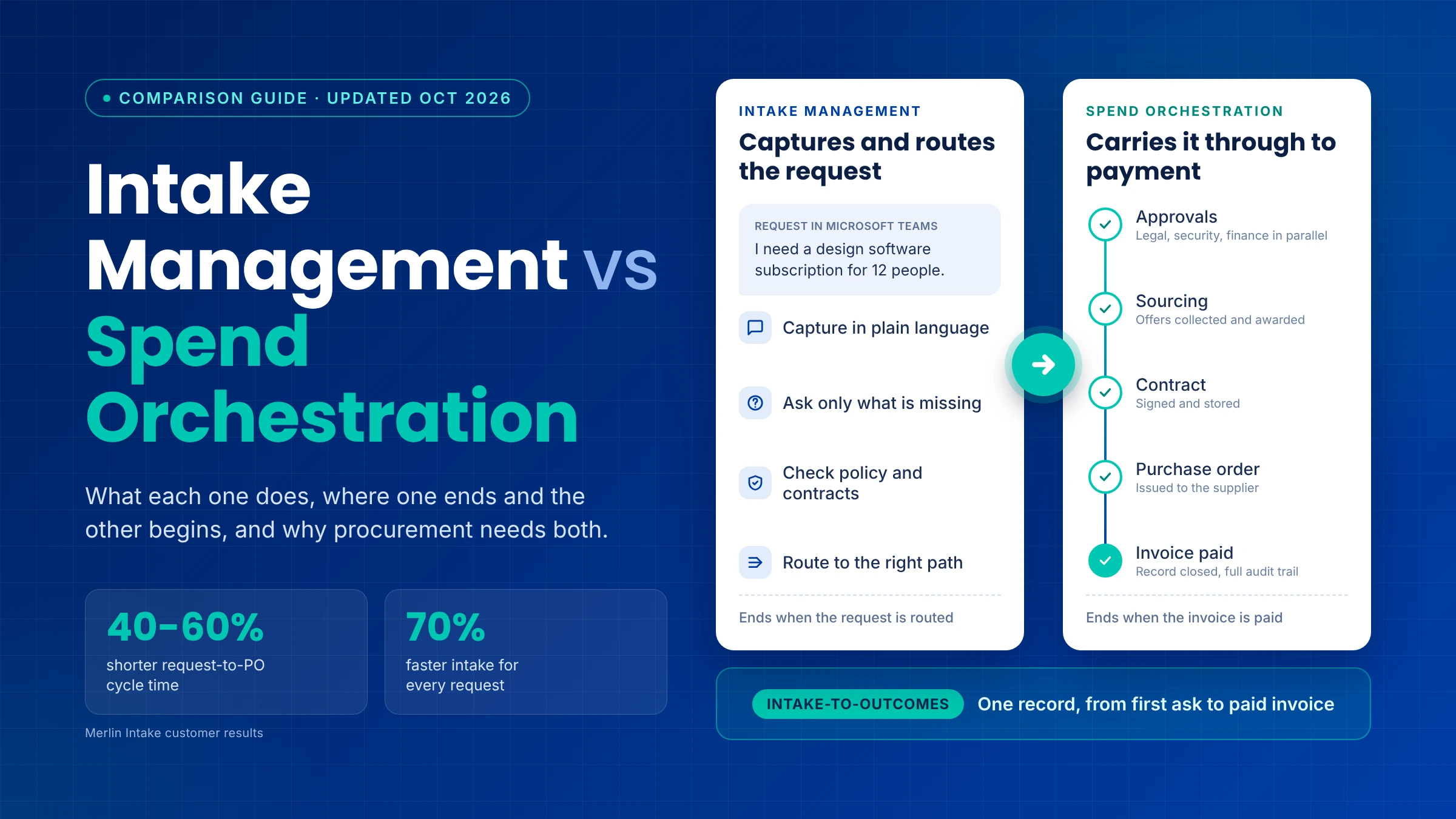
Merlin Intake customers report 40 to 60 percent shorter request-to-PO cycle times and 70 percent faster intake. For a fuller list of measures, read Mastering Intake Management Metrics to Drive Procurement Efficiency
Troubleshooting: common issues when submitting requests in Teams
- I can’t find Merlin Intake in Teams. Search for it in Apps in the left rail. If it isn’t there, your Teams admin may not have made it available to your group yet.
- My request is stuck with one approver. Ask for the status in chat to see who it is waiting on. Approvers get Teams notifications, and procurement can see every open request.
- I picked the wrong item or supplier. Tell Merlin Intake in the same chat before the PR is submitted. After submission, ask procurement to cancel or amend it so the audit trail stays complete.
- My attachment didn’t upload. Check that the file type is supported and try again from the chat. Large files may need to be shared as a link.
- My request was rejected. The approver’s comment appears in Teams. Update the request with the missing detail and resubmit from the same thread.
See Merlin Intake in Microsoft Teams
Merlin Intake turns a Teams message into a governed request, routed and tracked through to the PO. It is part of the Merlin Agentic Platform, which carries every request from Intake-to-Outcomes.
Request a demo to see it with your own policies and approval matrix, or try the interactive Merlin Intake demo first.
Frequently asked questions
1. Can I submit a purchase request from the Teams mobile app?
Yes. Merlin Intake works in the Teams mobile app, so you can raise a request, answer follow-up questions, attach a photo of a quote and check status from your phone. Approvers can approve or reject from mobile too. Merlin Intake is also available as an iOS app for people who want a dedicated mobile experience.
2. Do I need a separate login or procurement portal?
No. You raise the request inside Microsoft Teams, where you already work. Merlin Intake handles the procurement steps in the background and writes the request to your procurement system, so employees don’t need to learn a new tool.
3. Can I attach quotes, statements of work or other documents?
Yes. Attach files directly in the chat. Merlin Intake reads documents such as quotes and statements of work and uses them to fill in request details like supplier, amount and scope, so you type less.
4. Who approves my purchase request?
Your organization’s approval matrix decides. Routing is based on the amount, the category, the cost center and whether the supplier is new. A typical request goes to a budget owner, and larger or riskier requests add finance, legal or IT security.
5. How do I check the status of my request?
Ask in the same chat, for example “What is the status of my PR?” You’ll see the current step, who it is waiting on and the PO number once it is issued.
6. Can I submit procurement requests in Slack or by email instead?
Yes. Merlin Intake also works in Slack and email, and through a web experience, so every team can use the channel it already works in. All requests follow the same policy checks and routing.
7. Does a request submitted in Teams create a PR or PO in our ERP?
Yes, when Merlin Intake is connected to the Zycus Source-to-Pay suite or to your ERP, such as SAP, Oracle or NetSuite. Approved requests become a purchase requisition and then a PO, with no manual rekeying.
8. Is the built-in Teams Approvals app enough for procurement intake?
For occasional, simple approvals, it can be. It doesn’t check requests against your buying policy, match them to catalogs or contracts, or create a PR or PO in your ERP. Enterprises that need governed, trackable intake usually add a procurement intake agent.